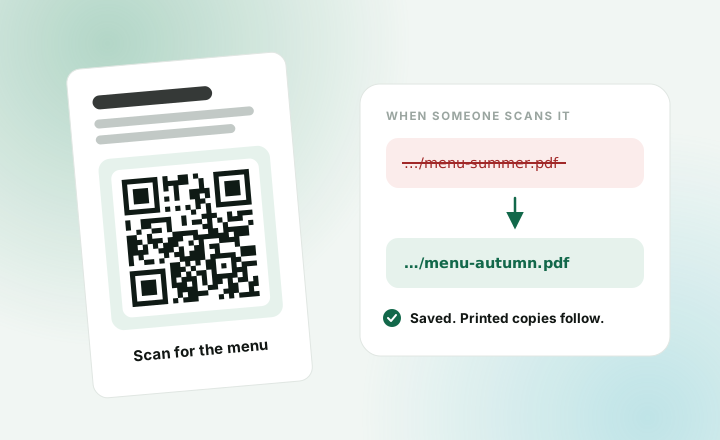
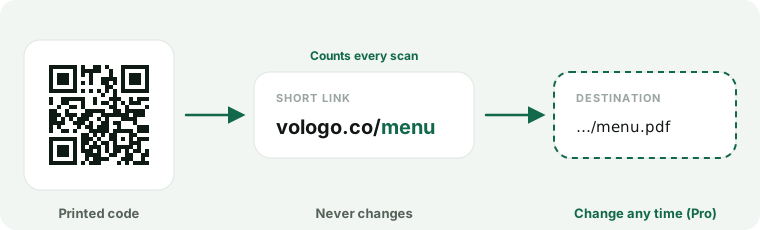
Most QR codes have the link baked in. Once printed, they can never change. A tracked QR code is different. It points to a short link, and you choose where that link goes.
Plain or tracked?
| Plain code | Tracked code | |
|---|---|---|
| Counts scans | No | Yes |
| Change the link after printing | No | Yes, on Pro |
| Colours, logo and frame | Yes | Yes, on Pro |
| How many | Unlimited, free | 3 free, unlimited on Pro |
Pick plain for something that never changes, like your Wi-Fi details. Pick tracked for menus, posters, flyers and packaging.
Make a tracked code
- Sign up free and open QR codes.
- Press New QR code.
- Under Type of code, choose Tracked code.
- Paste your link into Destination.
- Press Create code, then download it.
Scan one printed copy with your phone before you print a lot.
Tips for codes that scan
- Dark code, light background. Phones read light and dark, not colour.
- Keep the blank margin at 4 or more.
- Adding a logo? Set Damage tolerance to High or Highest first.
- Fill in Printed width. We tell you if the code will be too small to scan.
Change where it goes PRO
Open the code in QR codes and type a new Destination. That’s it. Every printed copy opens the new link right away. No reprinting.
Make many codes at once PRO
Got a code for every product, table or shop? Make them in one go.
- In New QR code, choose Tracked code.
- Choose A list of links.
- Paste your links, one per line. Up to 500.
- Set the colours and logo once. Every code gets the same design.
- Press Create.
Each code counts its own scans, and you can change any of them later.
Want a name on each code? Paste a CSV with a
urlcolumn and atitlecolumn.
Just need a one-off code? The free QR code generator needs no account.